When creating a new page in DNN, or when viewing the settings of an existing page you have the option to select one of four different page types.
- To view or change the page type of a page, first log in to the DNN site as an administrator.
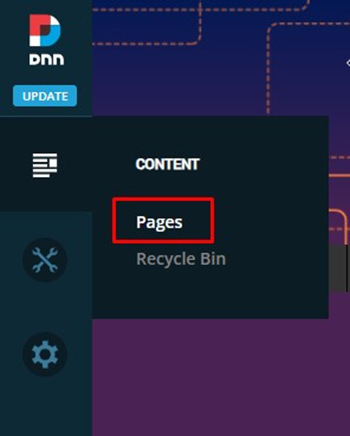
- In the left-hand admin bar hover over the Content icon and click Pages.
- In the page listing on the left, click on the page name that you wish to view or change the page type for.
- In the Page Settings window on the right, you will see a radio button list for the Page Type.
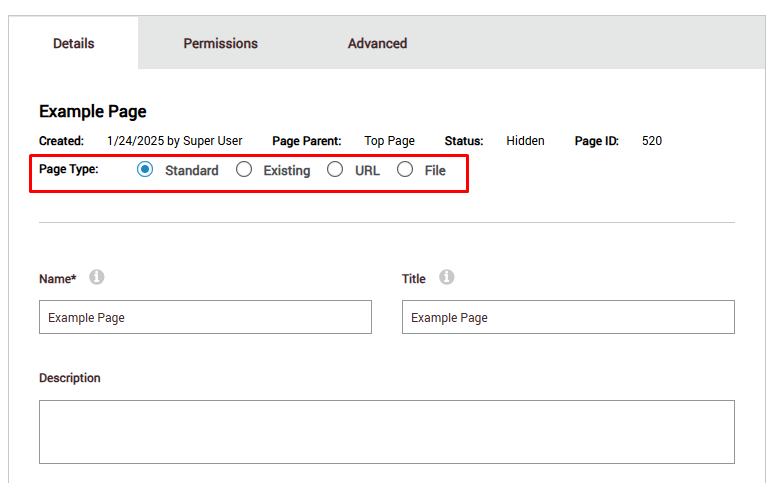
- The different page types are:
Standard
The Standard page type is used for the vast majority of pages on a client website. This is a regular website page with content (copy, images, video, etc.) added to it.
Existing
The Existing page type is used to link the page to another page on the site.
Example: You want to add the client’s blog to both the “Education” and “Publications” drop-down menus in the website’s main navigation. To do this, you would create the Blog page under the Education page as a standard page type. The actual Blog page content would live here. Then you would add a second page called “Blog” under the Publications page. For this second Blog page, you would select the Existing page type and select the Blog page in the Education drop-down.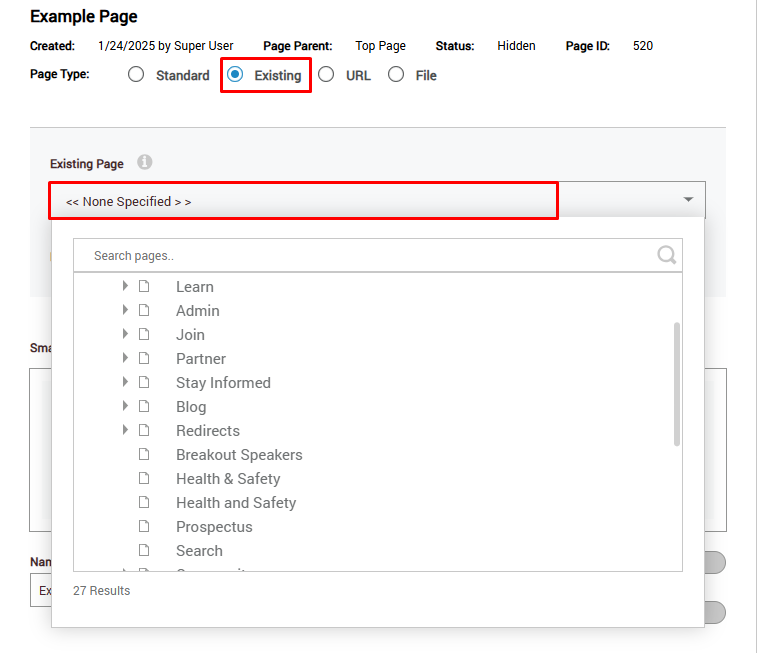
URL
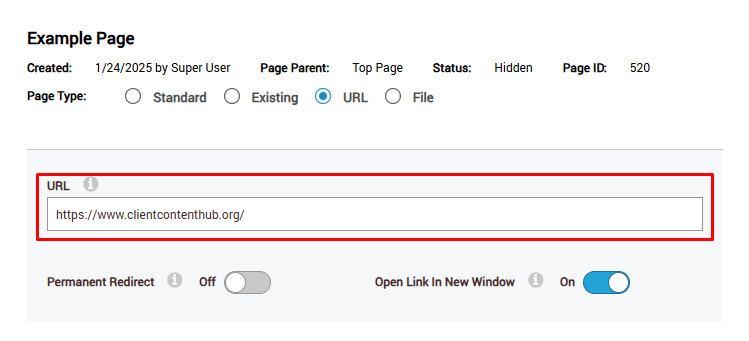
The URL page type is used to link to another URL, typically an external website. This is also a way to set up a redirect.
Examples: Adding a link to the client’s content hub or conference microsite. Creating a vanity link/redirect to an external website like a conference schedule hosted on a third-party platform.
File
The File page type is used to link directly to a viewable/downloadable file housed on your website in the Site Assets section.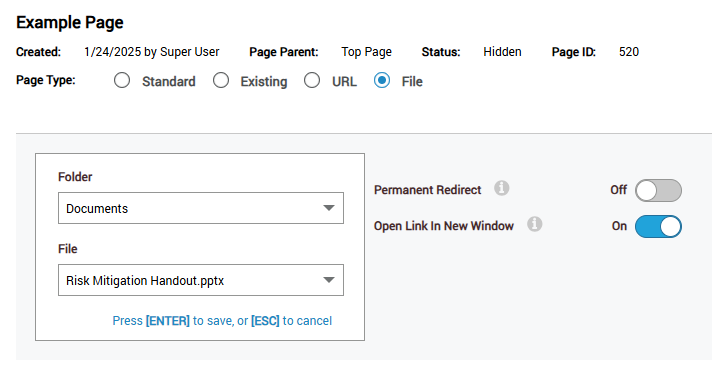
Notes
- For the URL and File page types, it is best practice to turn the toggle on for “Open Link in New Window” as seen above.
Was this article helpful?
That’s Great!
Thank you for your feedback
Sorry! We couldn't be helpful
Thank you for your feedback
Feedback sent
We appreciate your effort and will try to fix the article