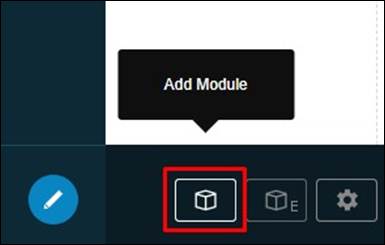
To add a new module, begin by navigating to the page where the module will be placed. From the bottom admin toolbar, select the left button with the cube icon to open the module options.
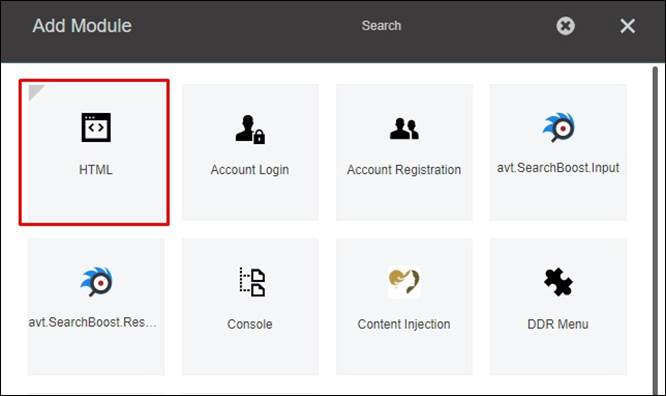
In the popup window, click on the module type that should be added to the page. In most cases, the HTML module will be selected.
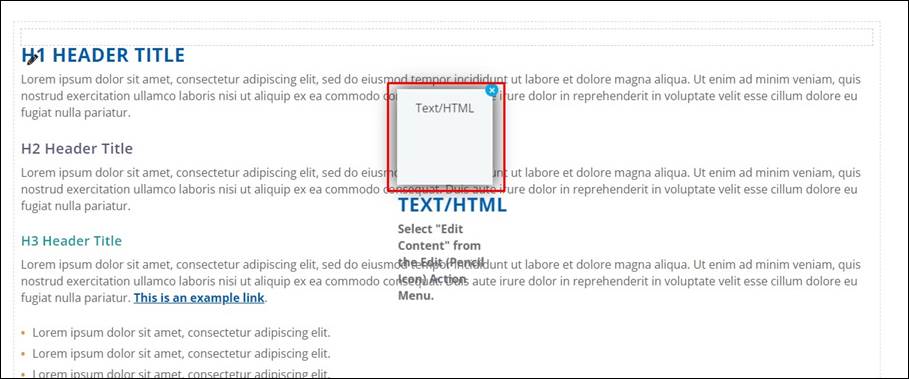
The module will then float on the page allowing it to be dragged and dropped it into a content pane on the page.
Once the module is placed, you can move it to a new location by hovering over the directonal arrows on the far right and choosing the location you would like it to be placed.
Adding an Existing Module
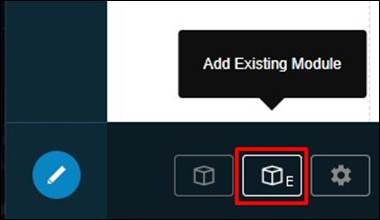
DNN allows existing modules to be added to other pages on the website. To begin adding an existing module, click the middle icon in the bottom admin toolbar.
A popup window will be displayed that has a Page dropdown and then a checkbox that says “Make a copy”.
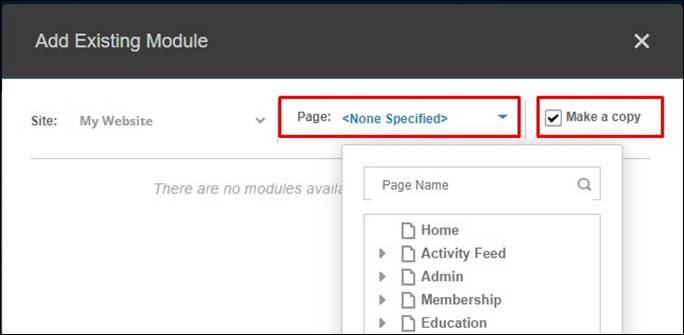
This checkbox is important as it allows admins to add two different types of existing modules:
- If the checkbox is checked, the module being added will be a duplicate of the module selected.
- If the checkbox is unchecked, the module being added will be a duplicate of the module but the two modules will be “shared” meaning any updates made to the module on one page will also be made to the module on any other page it is shared with on the website.
Tip: This is useful for content that you want to be the same on multiple pages (like a conference banner) but you don’t want to have to manually update across all of the different pages.
In the popup window, click the page dropdown. The dropdown will show the page hierarchy, listing all of the pages on the website. Select the page with the module that is to be copied from the list.
Once the page has been selected, all of the modules on said page will be listed. Click the module that is to be copied. It will then float on the page allowing it to be dragged and dropped into a content pane on the page currently being working on.
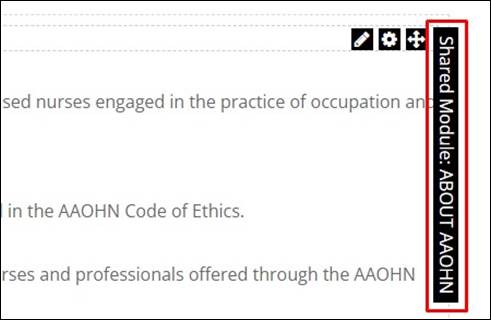
Tip: If you uncheck the “Make a copy” checkbox, you can tell the module is a shared module by hovering over the module in the content pane and looking at the top right corner. It will say “Shared Module: Title of Module”:
Was this article helpful?
That’s Great!
Thank you for your feedback
Sorry! We couldn't be helpful
Thank you for your feedback
Feedback sent
We appreciate your effort and will try to fix the article