- To begin, log in to the DNN site as an administrator.
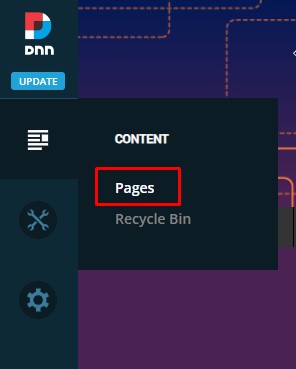
- In the left-hand admin bar hover over the Content icon and click Pages.
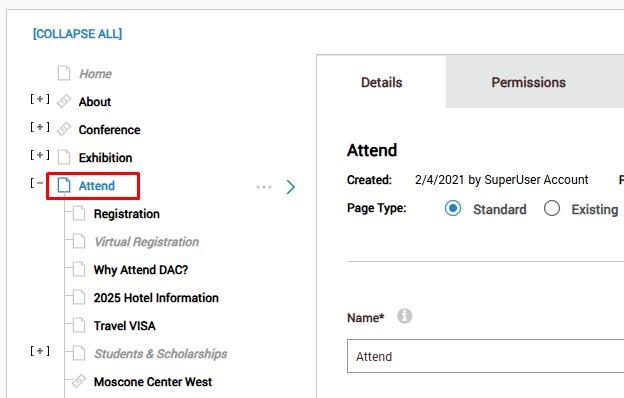
- In the page listing on the left, find the parent page (the page you’d like to add a subpage to) and click on it. For example, in the screenshot below we would like to add a page below the “Attend” navigation item.
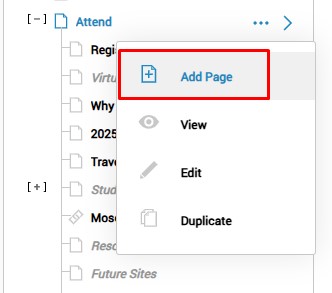
- Hover over the options button (three dots icon) to the right of the parent page you have selected. In the dropdown menu click on Add Page.
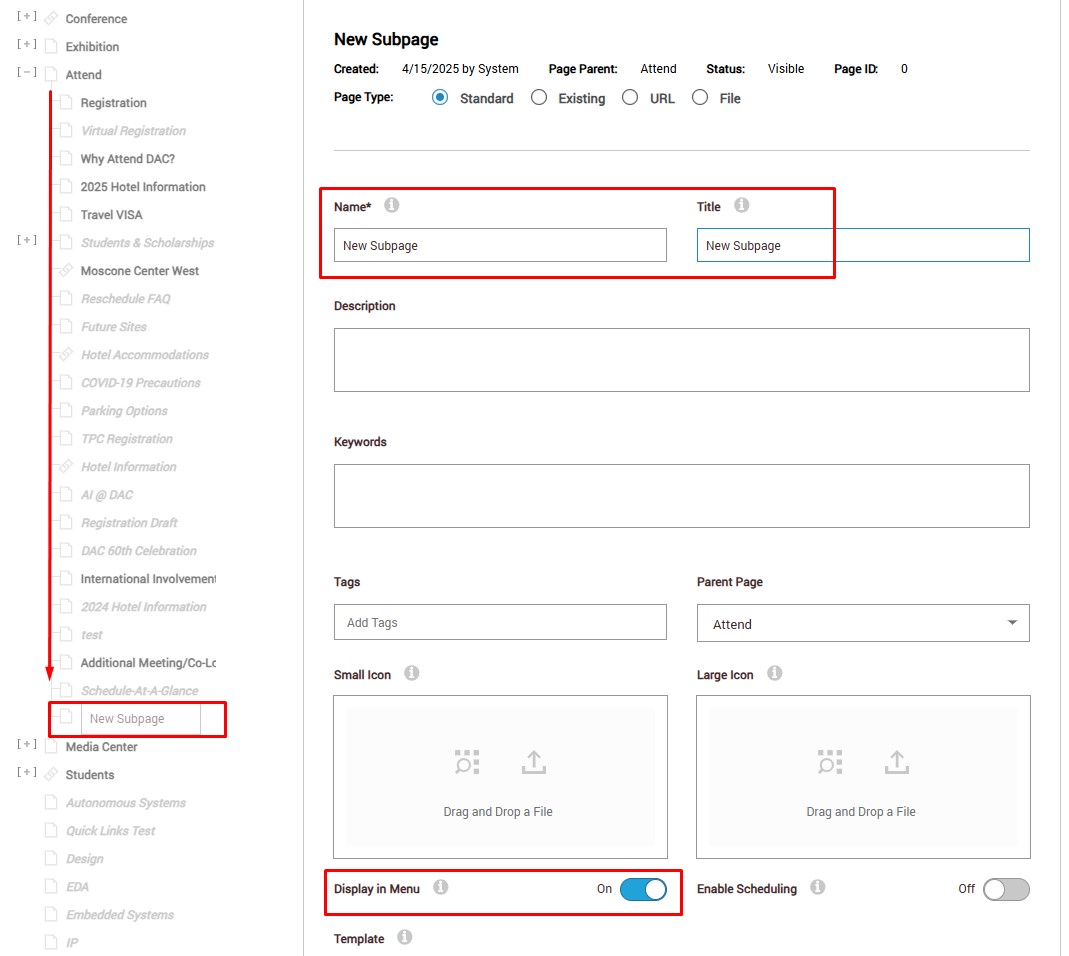
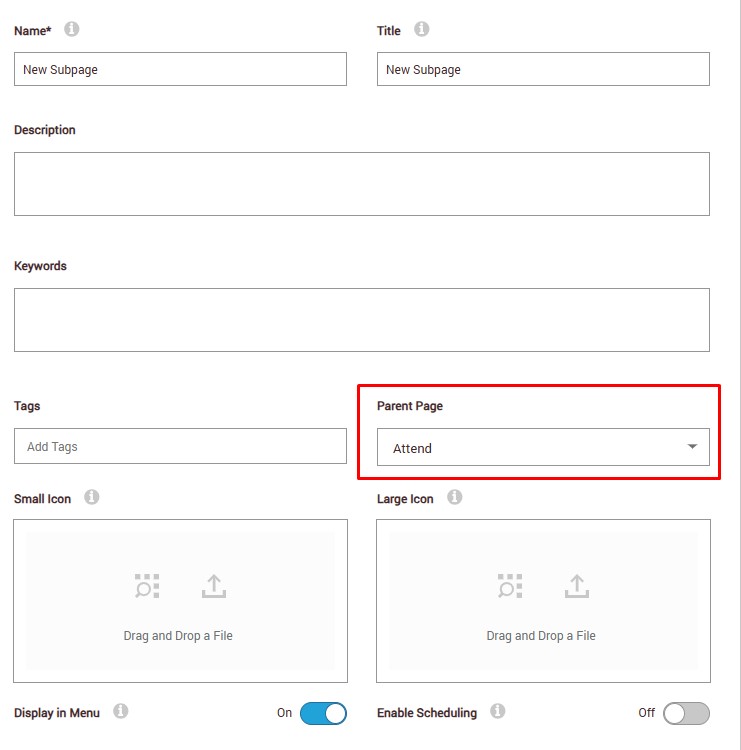
- A new page will be created below that menu item at the bottom of the child page listing. In the page settings window on the right, enter in a Page Name (this will be the name of the page in the navigation menu) and a Page Title (this will be displayed in the browser tab and is used for SEO). Optionally, toggle on or off the Display in Menu setting to show or hide the page in the navigation.
- Click the blue Add Page button at the bottom of the page settings window to complete the process.
- You can easily change the parent page that a page lives under by selecting a new parent page in the dropdown menu in the page settings.
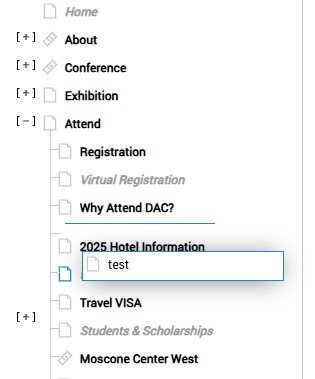
- If you would like to move a page up or down within its current dropdown you can drag and drop the page on the left hand side in the page listing.
Notes
If you would like to add a top-level navigation item (not a subpage), use the blue Add Page button in the top right corner of the Pages window
Was this article helpful?
That’s Great!
Thank you for your feedback
Sorry! We couldn't be helpful
Thank you for your feedback
Feedback sent
We appreciate your effort and will try to fix the article