Have an account but no password
Password Reset for person who has already logged in and has a verified email.
- Use the most recent Login to reset the password.
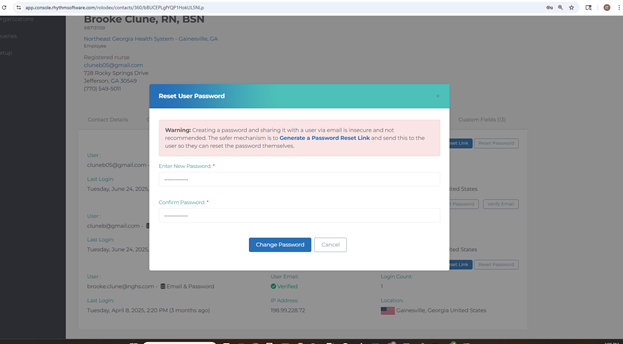
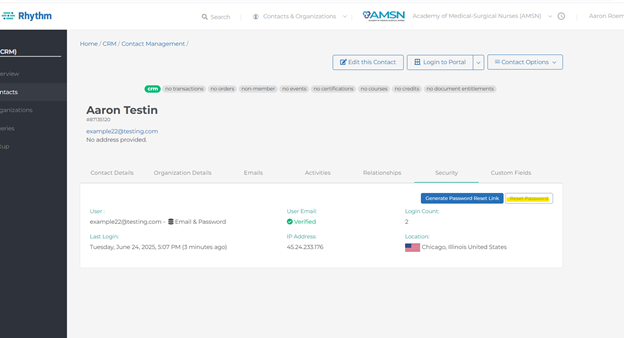
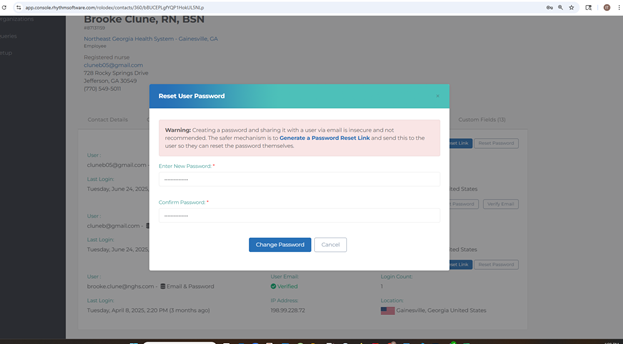
- Reset the password. Use Co-Pilot or Password Generator for p/w if needed.
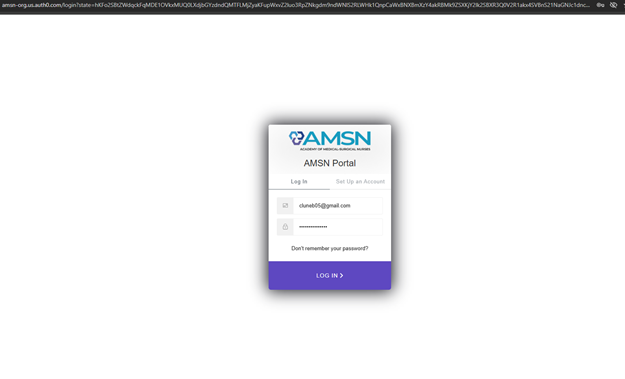
- Go to Incognito Window and test new password.
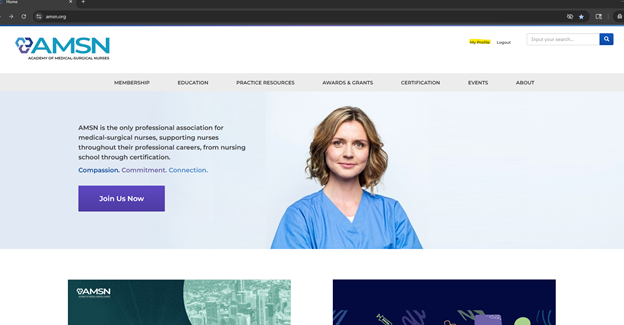
- Check Profile, make sure it’s working.
1. Use the most recent Login to reset the password.
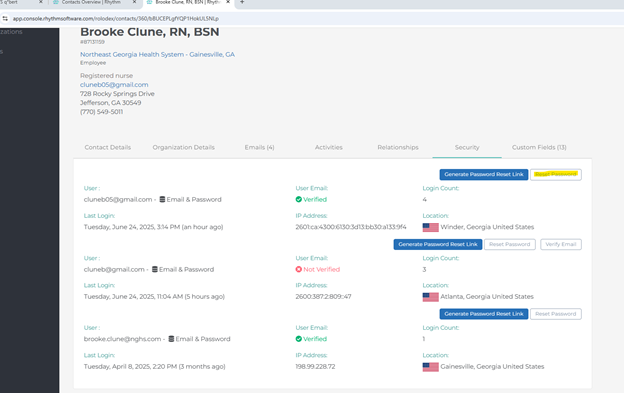
2. Reset the password. Use Co-Pilot or Password Generator for p/w if needed.
3. Go to Incognito Window and test new password.
4. Check Profile, make sure it’s working.
No account in Rhythm
- Open incognito window. Click the Login/Create Account button in the top right corner.
- Click the “Set Up an Account” tab.
- Fill out information
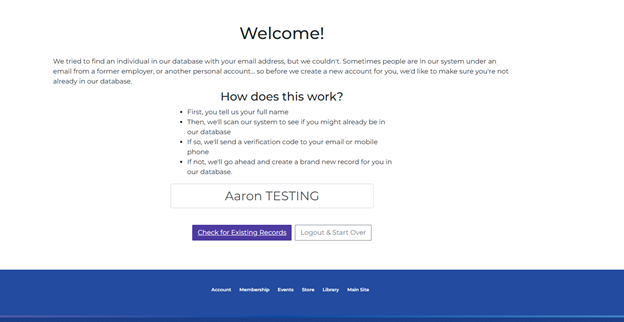
- Enter Name to check database. Click “Check for Existing Records”
- Click –“go ahead and create a new record.” link.
- Click “Continue”
- Go back into Rhythm CRM and pull up the contact.
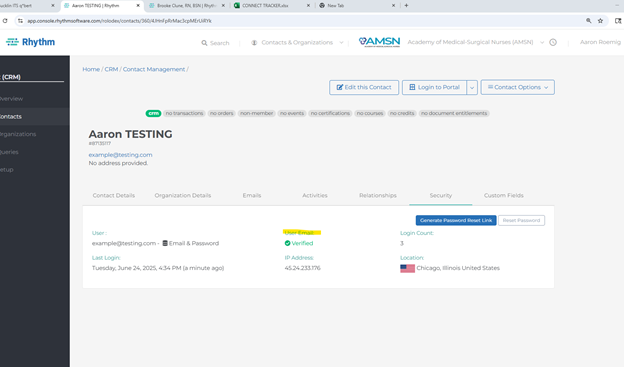
- Click Verify Email. You should get a Email Successfully Verified green pop up on the top.
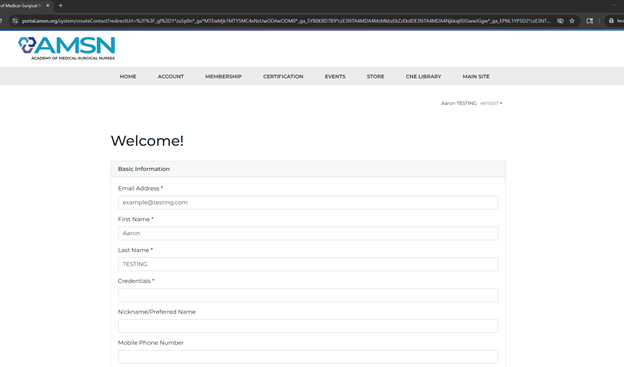
- Open up an incognito window and try to log in again. Click “My Profile” to check, you should come to a welcome page.
- Refresh Rhythm to see the email is now verified.
- Open incognito window. Click the Login/Create Account button in the top right corner.
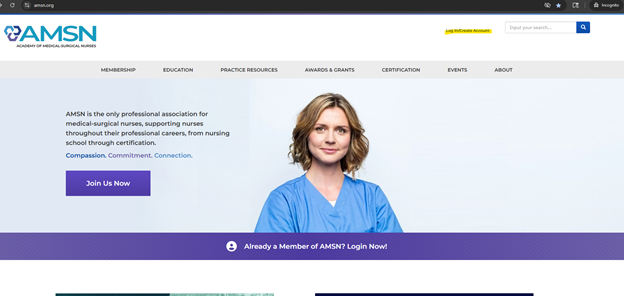
2. Click the “Set Up an Account” tab.

3. Fill out information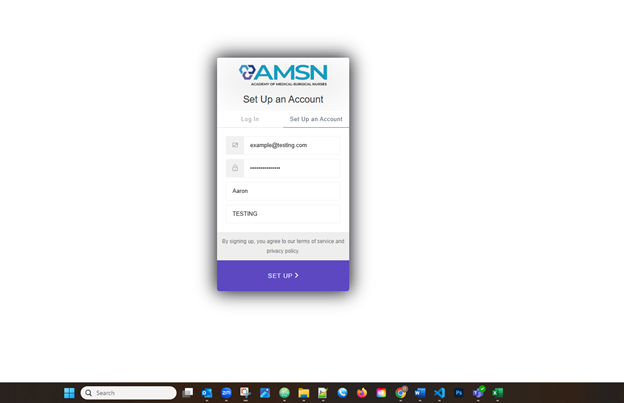
4. Enter Name to check database. Click “Check for Existing Records”
5. Click –“go ahead and create a new record.” link.
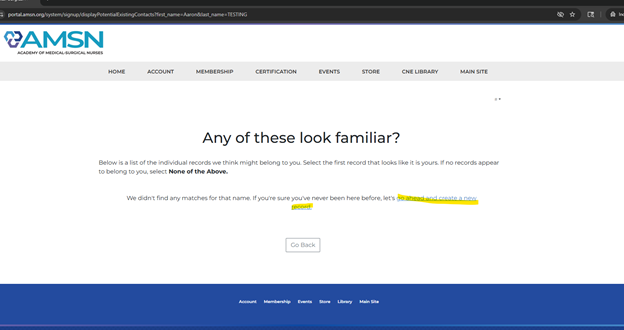
6. Click “Continue”
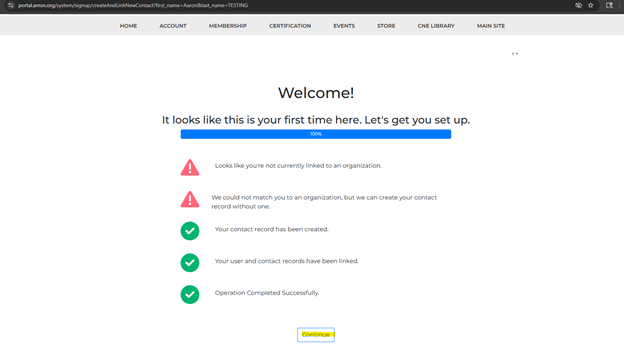
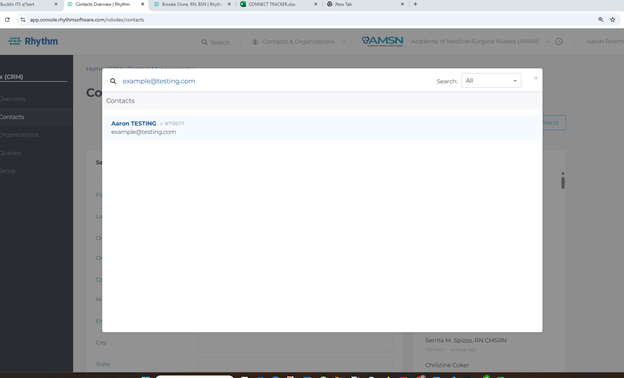
7. Go back into Rhythm CRM and pull up the contact.
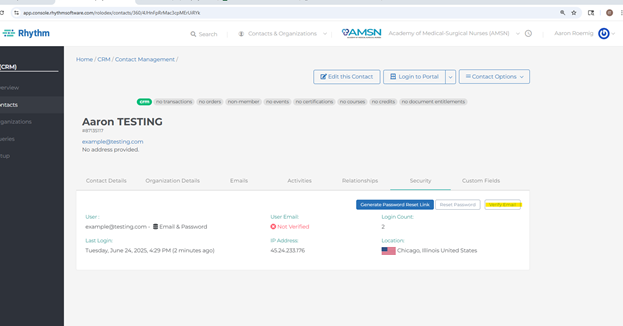
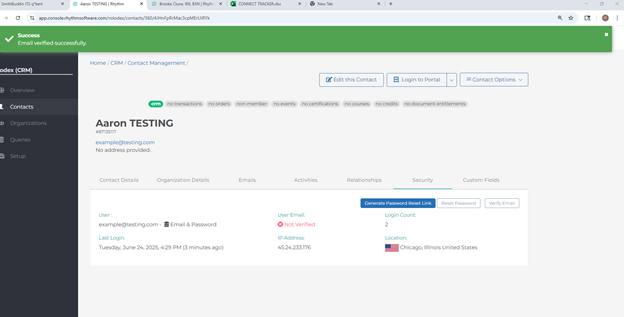
8. Click Verify Email. You should get a Email Successfully Verified green pop up on the top.
9. Open up an incognito window and try to log in again. Click “My Profile” to check, you should come to a welcome page.
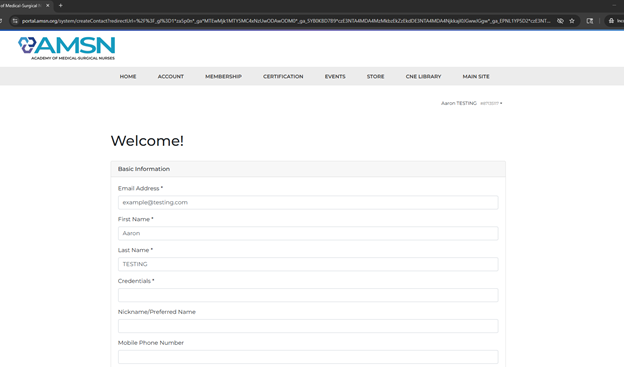
10. Refresh Rhythm to see the email is now verified.
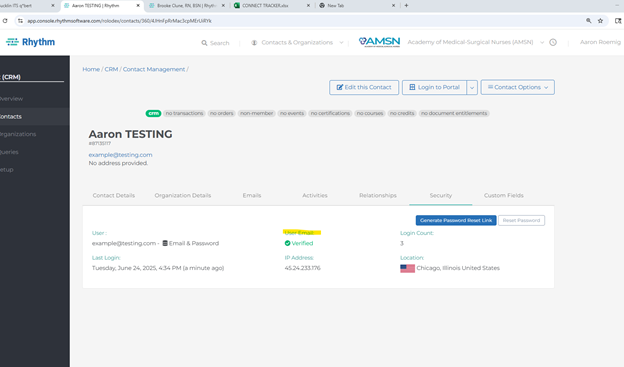
Email Not verified
- Click “Verify Email” button, you should get a green success message.
- Reset Password
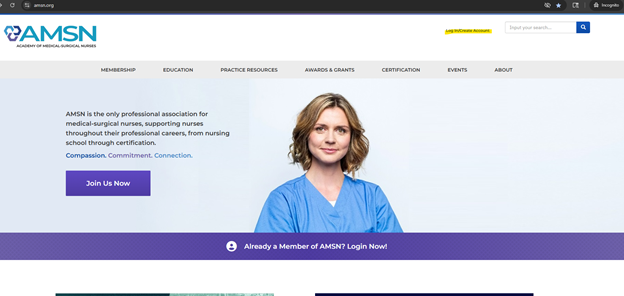
- Open an Incognito window and login via the new credentials in the upper right corner “Log In / Create Account
- Check “My Profile” to get the “Welcome Page”
- Close Incognito Window and Refresh Rhythm to see Email is now verified.
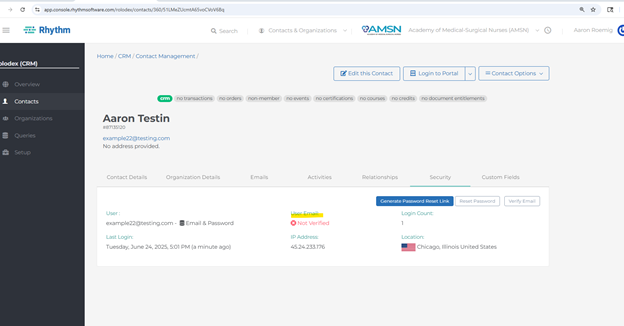
1. Click “Verify Email” button, you should get a green success message.
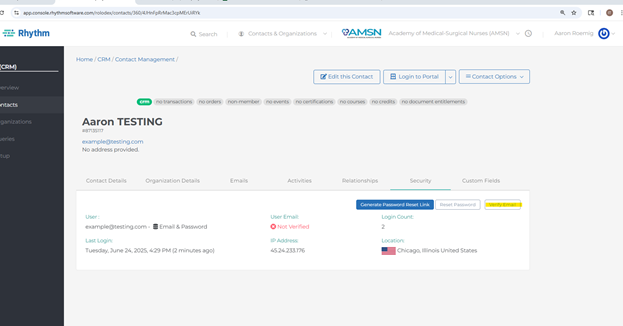
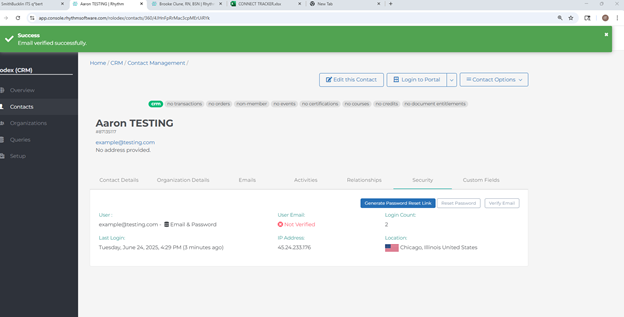
2. Reset Password
3. Open an Incognito window and login via the new credentials in the upper right corner “Log In / Create Account
4. Check “My Profile” to get the “Welcome Page”
5. Close Incognito Window and Refresh Rhythm to see Email is now verified.
Was this article helpful?
That’s Great!
Thank you for your feedback
Sorry! We couldn't be helpful
Thank you for your feedback
Feedback sent
We appreciate your effort and will try to fix the article