- To begin, log in to the DNN site as an administrator.
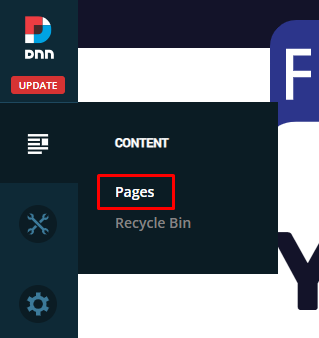
- In the left-hand admin bar hover over the Content icon and click Pages.
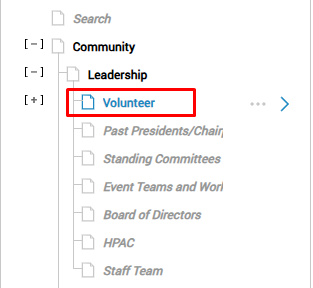
- In the page listing on the left, find the page you want to hide from the navigation and click on it. For example, in the screenshot below we would like to hide the “Volunteer” navigation item.
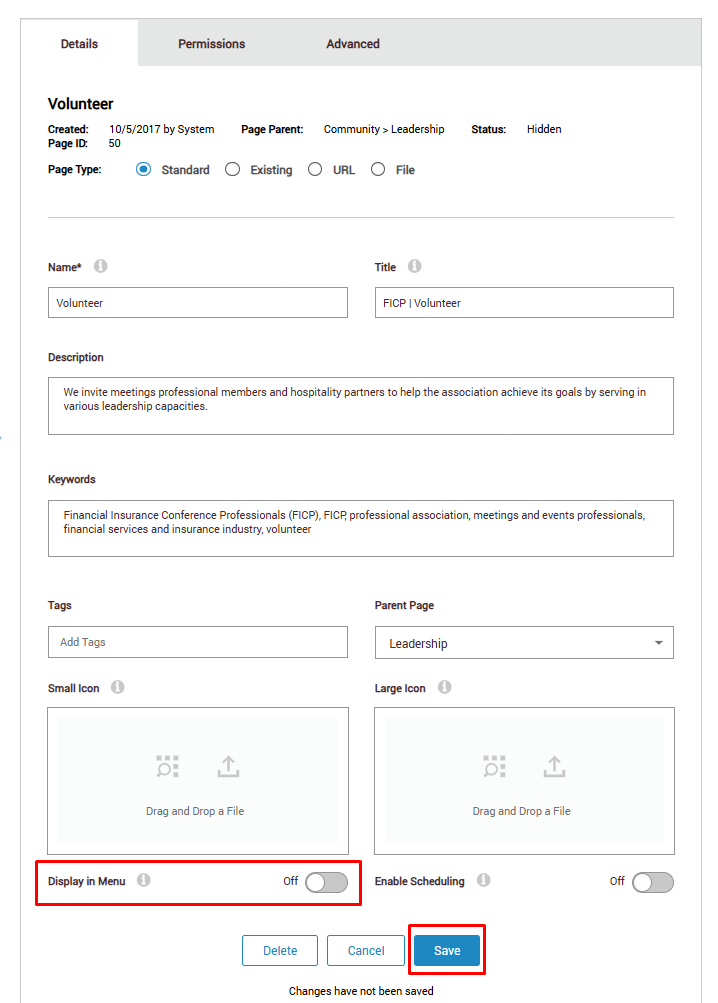
- In the page settings window on the right-hand side, there is a toggle for “Display in Menu”. Click the toggle to turn it off (it should no longer be blue. Then click Save. (See screenshot below for reference.)
Was this article helpful?
That’s Great!
Thank you for your feedback
Sorry! We couldn't be helpful
Thank you for your feedback
Feedback sent
We appreciate your effort and will try to fix the article