The below instructions will show you how to filter out data from a report in Google Analytics so that you can see just the data for specific pages that begin with the same URL. The most common use case for this is when you have a content hub on a different domain that the main client website but the two sites share a Google Analytics property.
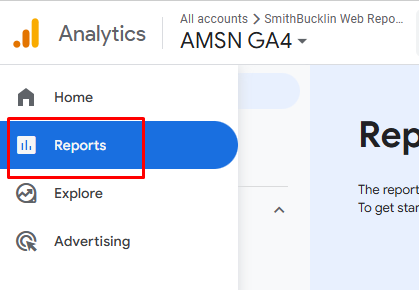
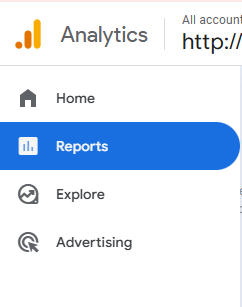
- To begin, log in to Google Anayltics, go to the appropriate property, and then go to the Reports.
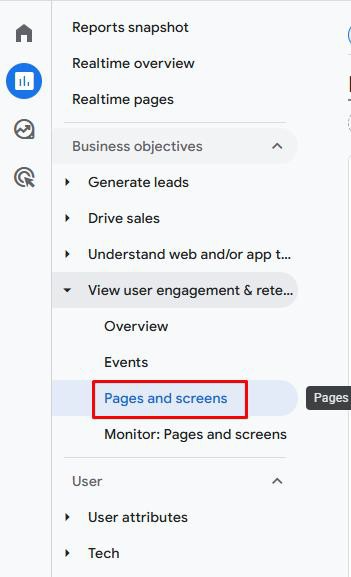
- Click on a report in the left-hand menu. In this example we will be creating the filtered report in Pages and Screens.
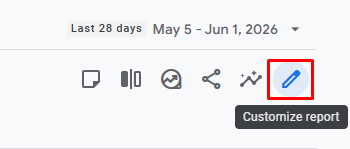
- In the top right corner of the page, click the pencil icon to Customize the Report
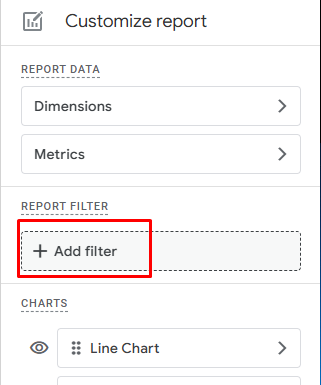
- Then click “Add filter”
- Select “Hostname” as the dimension, “exactly matches” for the match type, and then select or type in the URL for the content hub.
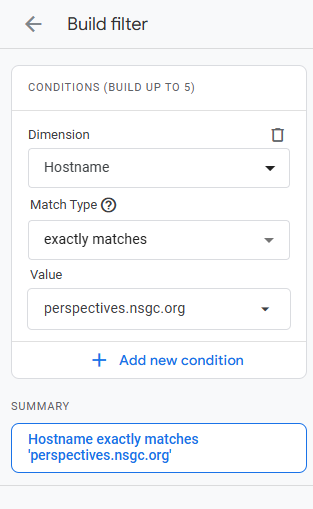
- At the bottom of the Build Filter pane, click Apply. Now the report only shows data from the pages that begin with the URL you entered.
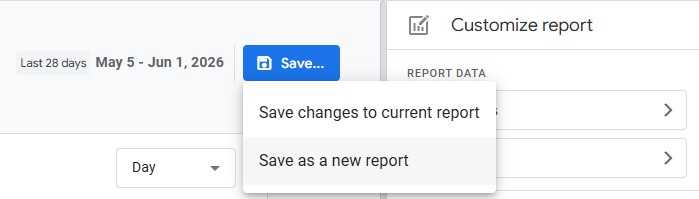
- Towards the top of the page, click Save then click Save as a new report.
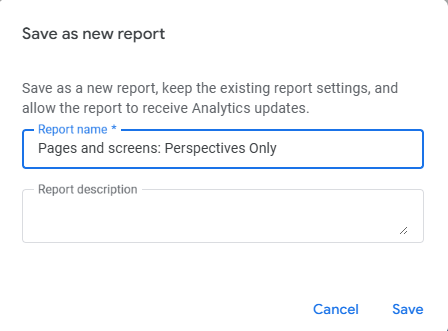
- Give the report a name and optionally add a description.
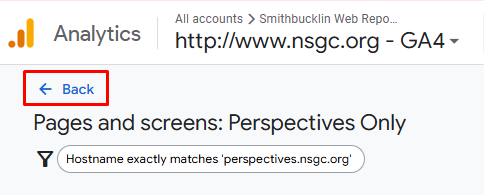
- Now we can add the report to the menu of reports. Click Back in the top left corner.
- Click Reports in the left-hand menu again.
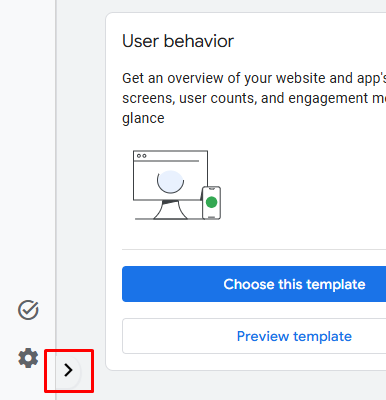
- Then click the little arrow at the bottom of the page by the gear icon
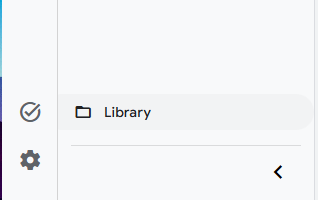
- Then click Library
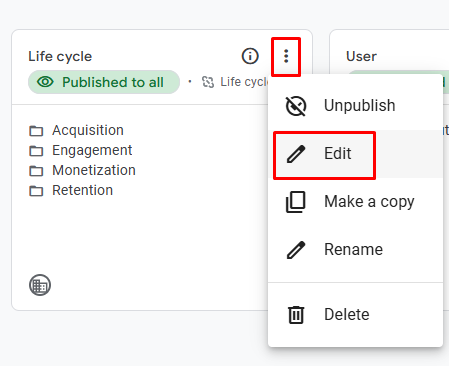
- Under Collections, click the three dots icon under the collection you wish to add your new report to. In this case I am going to add it under Life Cycle since that is where the other Pages and Screens report lives. Then click Edit.
- Find your new report in the right-hand column and drag it to the location in the left-hand column where you want the report to live.
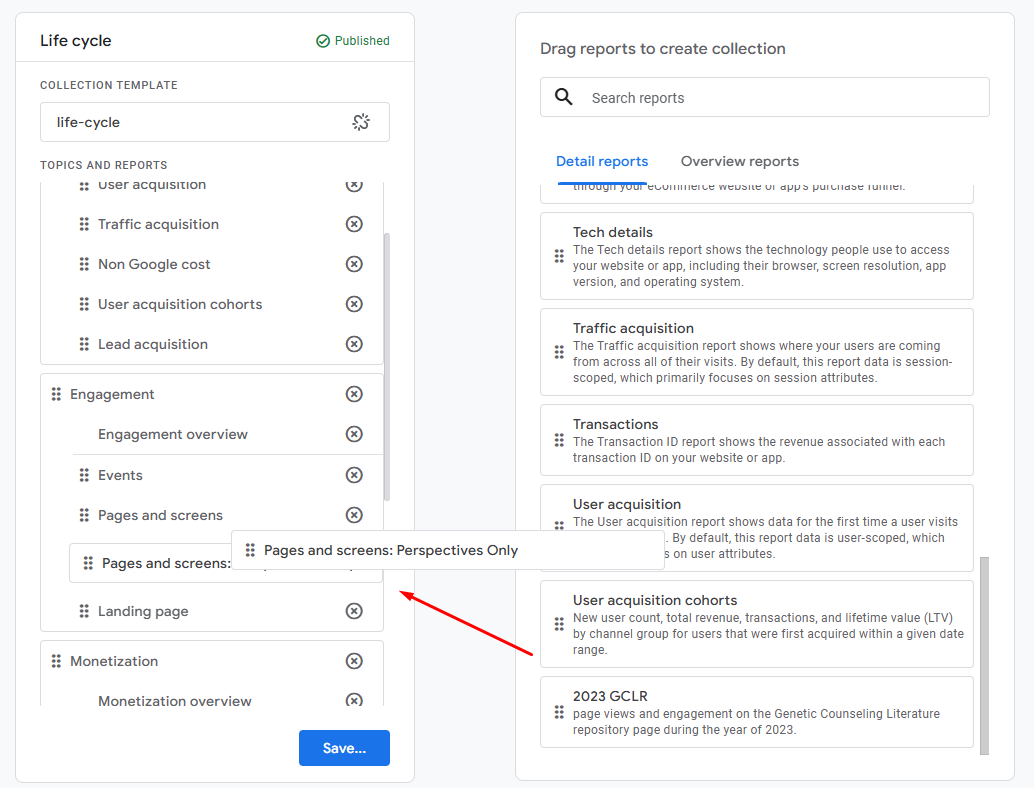
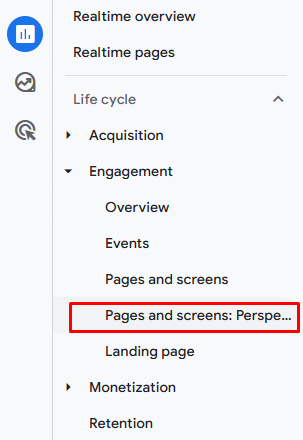
- Then click Save > Save changes to Current Collection. Now if you go back to the Reports, you will see your saved report in the list where you added it.
Was this article helpful?
That’s Great!
Thank you for your feedback
Sorry! We couldn't be helpful
Thank you for your feedback
Feedback sent
We appreciate your effort and will try to fix the article