In DNN, you have the option to add a “shared module” that displays the exact same content on multiple pages. When the original content is updated, it updates everywhere simultaneously. This is perfect for elements that should be identical across many pages, such as conference banners, event or sub navigations, ad banners, and call-to-action (CTA) banners.
- To begin, log in to the DNN site as an administrator.
- Navigate to the page you’d like to add a shared module too. Then click the pencil icon in the bottom left corner of the admin toolbar to enter edit mode.
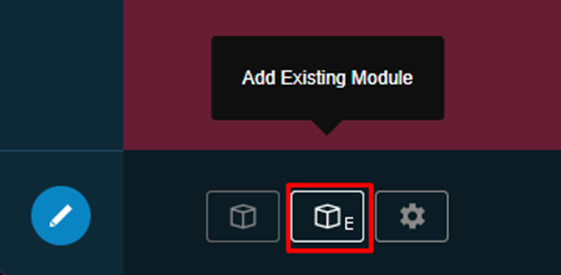
- In the bottom admin toolbar, click on the middle icon with a cube and the letter E to begin adding an existing (shared) module to the page.
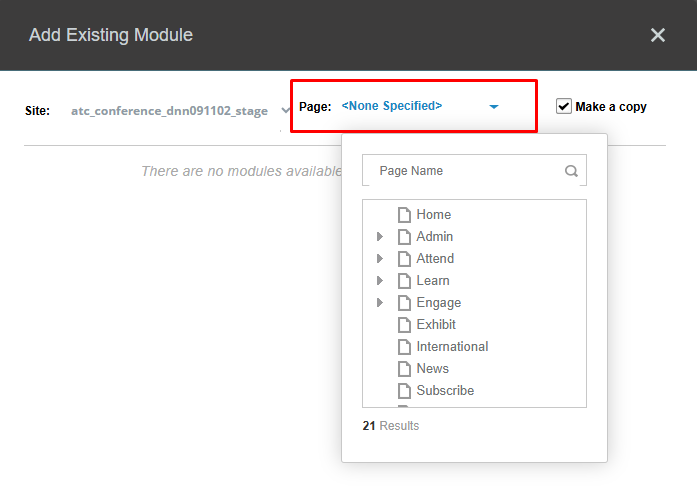
- In the popup window, click on the Page dropdown. In the page list, find and click on the page with the module you’d like to copy. Click on the arrows to expand the page list and see subpages if needed.
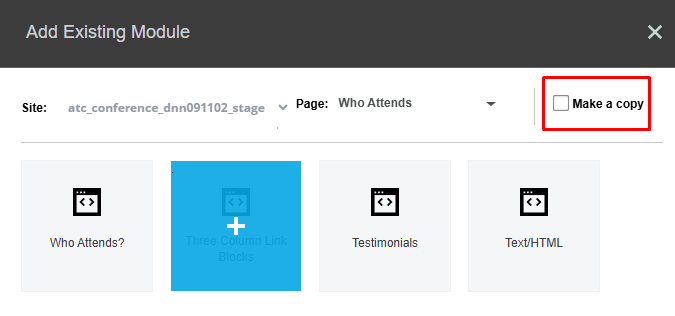
- Upon clicking the page, the list of modules on the page will be displayed in the popup window. Make sure that the “make a copy” checkbox is NOT checked. If the checkbox is checked, the module will be a copy instead of a reference. Click on the module you’d like to create a shared duplicate of.
- The module will appear as a floating element; drag and drop it into the desired location on the page.
Notes
- When you edit the content in any of the shared instances, the change takes effect immediately on ALL pages where that module is referenced.
- To create a new module on a different page that uses the same initial setup, settings, and content as an existing module, but allows the new instance to be modified independently see the “Add an Existing Module” Instructions.
Was this article helpful?
That’s Great!
Thank you for your feedback
Sorry! We couldn't be helpful
Thank you for your feedback
Feedback sent
We appreciate your effort and will try to fix the article