In DNN, instead of adding a new blank module, you have the option to add an existing module (creating a copy). This allows you to quickly create a new module on a different page that uses the same initial setup, settings, and content as the existing module, but allows the new instance to be modified independently.
- To begin, log in to the DNN site as an administrator.
- Navigate to the page you’d like to add a copy of an existing module to. Then click the pencil icon in the bottom left corner of the admin toolbar to enter edit mode.
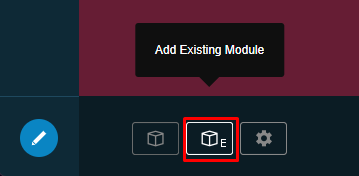
- In the bottom admin toolbar, click on the middle icon with a cube and the letter E to begin adding an existing module to the page
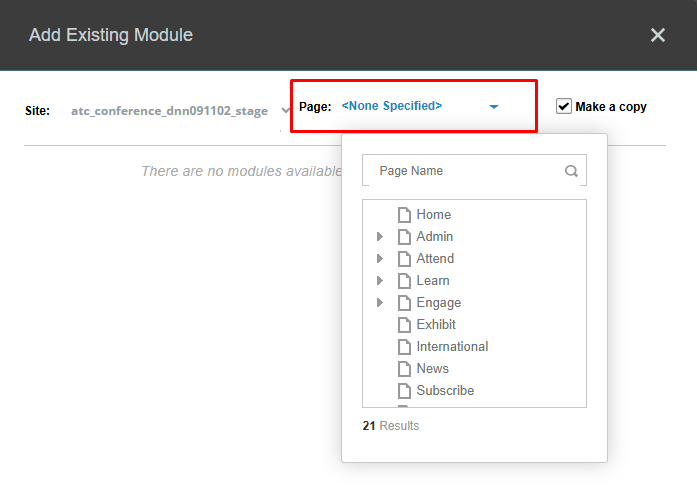
- In the popup window, click on the Page dropdown. In the page list, find and click on the page with the module you’d like to copy. Click on the arrows to expand the page list and see subpages if needed.
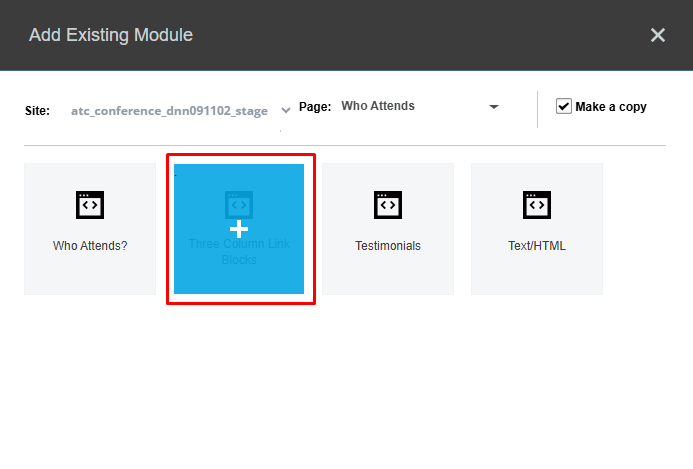
- Upon clicking the page, the list of modules on the page will be displayed in the popup window. Make sure that the “make a copy” checkbox is checked. Click on the module you’d like to copy.
- The module will appear as a floating element; drag and drop it into the desired location on the page.
Notes
- Changes made to the content or settings of the new copy DO NOT affect the original module, and vice versa.
- This is best for reusing the layout or initial template of an HTML module but requiring unique content on the new page.
- For creating a “Shared Module” where the content in the module is synchronized and changes to the content on one page also update the content of the module on another page see the “Add a Shared Module” Instructions.
Was this article helpful?
That’s Great!
Thank you for your feedback
Sorry! We couldn't be helpful
Thank you for your feedback
Feedback sent
We appreciate your effort and will try to fix the article